Payments
How to Accept and Confirm Card Payments During a Live Sale
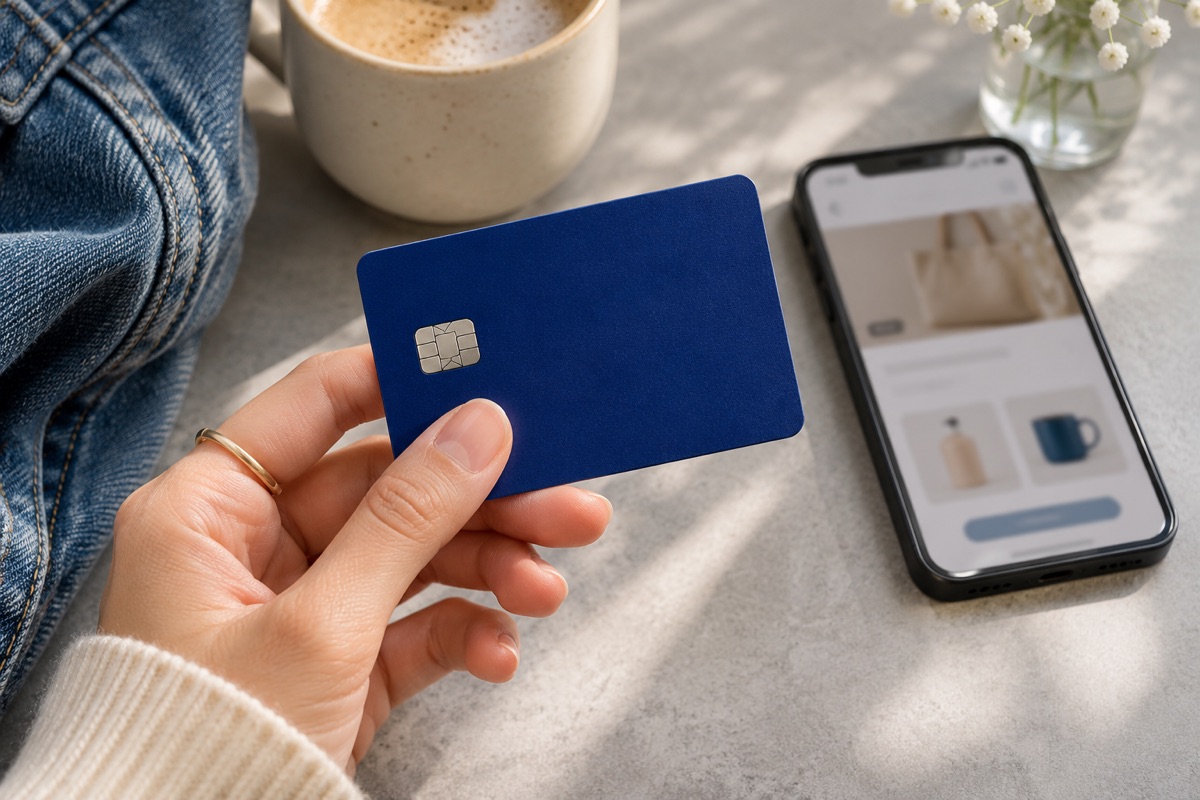
To accept card payments during a live sale, connect your store’s payment account to a checkout form, confirm the item and total with the buyer, and share the form link. The buyer pays through the card fields in the form. Confirm the payment status and amount in the order before shipping or arranging pickup.
Set up the checkout before your first payment
Connect an eligible Stripe or Square account and check its currency. Publish your form with the fields you need to identify the person, the item, and the agreed total. Buyers should see that amount before paying. Keep card details in your provider’s checkout fields and use the order number when discussing a purchase by email or direct message.
For a U.S. store, confirm the payment account’s eligibility and currency with your provider and your beta setup before taking live transactions. Check the fee schedule for online card payments on your account. Rates can differ by provider, plan, and transaction. Stripe U.S. pricing · Square U.S. payment fees
Check the amount and status in the order
Suppose a buyer claims J-27 and you agree on $40 including shipping. When their form comes in, look up the handle or item code. Confirm that the account processed $40 in the expected currency and that the order is paid.
| What you see | What to do |
|---|---|
| Payment confirmed | Match the item, buyer, and total. Move the order to packing or pickup. |
| Payment still processing | Keep the order pending and check again before asking the buyer to retry. |
| Payment declined or failed | Confirm the failed status. Give the buyer the form link or the retry instructions shown in checkout. |
A bank verification prompt or a closed browser can leave the buyer uncertain about the outcome. Wait for the result in your orders or your provider’s dashboard before requesting another payment. Share the order reference if the buyer needs help. Stripe payment status reference
Try the flow before going live
Open the published form from the same link your buyers will use. In your payment provider’s test environment, try a successful checkout and a declined payment. If your test flow includes a bank verification step, close it once and check what the seller sees before asking the shopper to try again. Confirm that you can tell a paid order from one that’s still processing. Square Web Payments SDK guide
Frequently asked questions
Do shoppers need a Clic&Live account to pay?
They can open a published Clic&Live order form and pay without creating an account when checkout is enabled by the store. Their bank may ask them to verify the card payment.
Where should I record the agreed amount?
Confirm the total when you assign the item and include it on the claim list. Use the same total in the form and check the payment against that amount before packing. Copy the live selling order form template